Do I need an account?
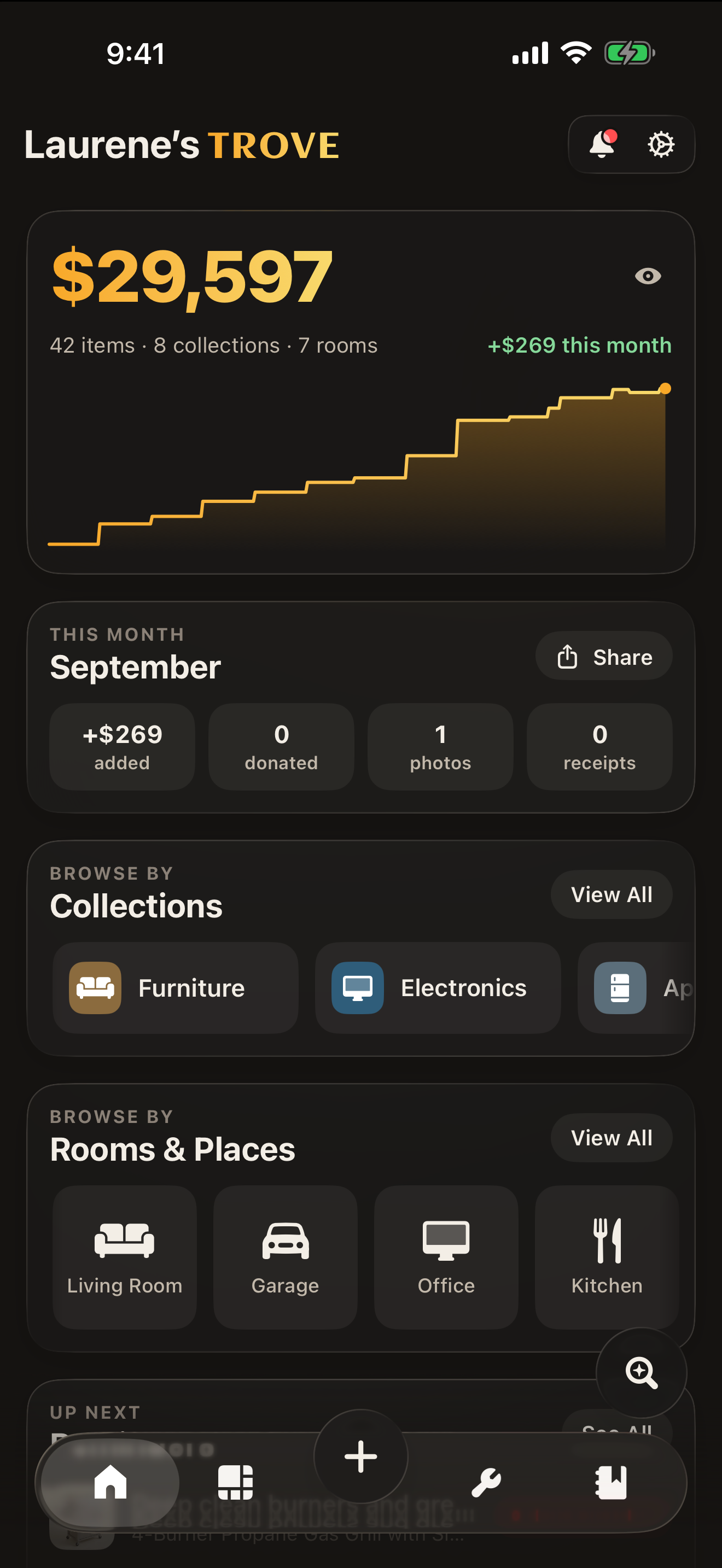
No. Trove does not require an account or sign-in. Your inventory is stored on your iPhone. Depending on your iCloud settings, the photos and files you add are also kept in your own iCloud on every plan, and paid plans sync your whole Trove across your devices.
Is my data private?
Your inventory is stored on your iPhone and, depending on your plan and iCloud settings, in your own iCloud. Trove connects to our servers to confirm your plan and load settings. Trove AI features are optional and processed by Google’s Gemini, and Trove asks for your consent before your data is first sent. We do not sell your personal information or use it for targeted advertising. Read the full Privacy Policy.
Does Trove work offline?
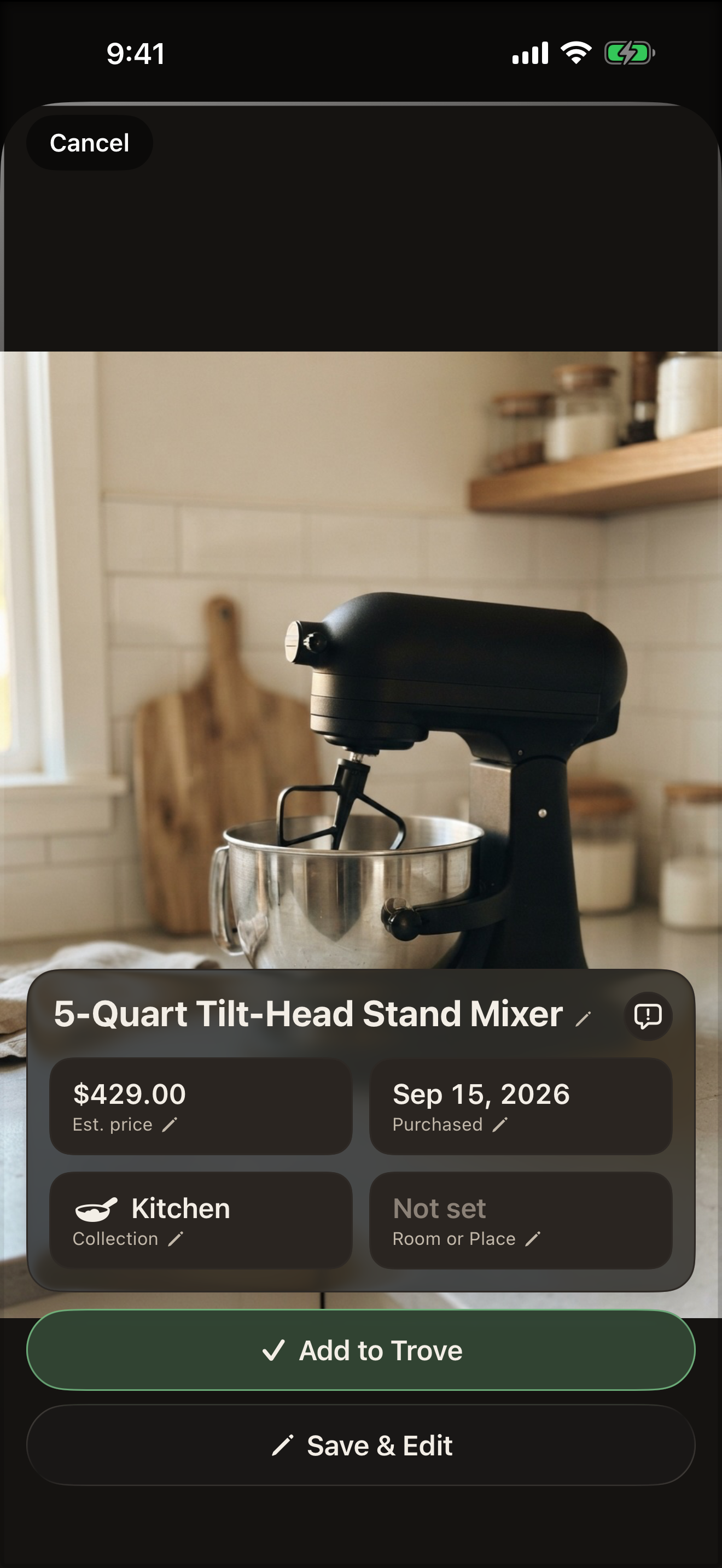
Mostly, yes. Adding, browsing, and editing items, as well as the on-device Receipt Scan (Quick), all work without an internet connection. Trove AI features such as Item Scan, Room Scan, Image Generation, and Receipt Scan (Cloud) require an internet connection.
What are AI usage limits?
Trove AI features such as Item Scan, Room Scan, Receipt Scan (Cloud), and Image Generation are included with the Pro and Max plans. Each plan comes with a usage allowance that resets every billing period, weekly or monthly depending on your plan. The Max plan includes five times the allowance of Pro, and you can check your remaining usage at any time in the app.
How does billing work?
Subscriptions are billed weekly or monthly and renew automatically unless canceled at least 24 hours before the end of the current period. Some plans include a free trial, described when you subscribe; unless you cancel at least 24 hours before it ends, it converts to a paid subscription. You can manage or cancel your subscription in your App Store account settings or by navigating to Settings within the Trove app.
What happens if I downgrade?
While your items aren’t deleted or hidden, editing is limited to your most recently added 20 items. Features that require a paid plan are also unavailable until you upgrade your plan again.
Can I export my inventory?
Yes, we offer multiple ways to export, back up, and share your inventory. Trove has an Inventory Report export (PDF & CSV), and donation reports can also be exported as a PDF. You can also use Manual Backup to export your entire Trove as a .trovebackup file that you can restore from later. The Inventory Report, donation report, and Manual Backup are available on Core plans and higher. Backups and reports are ordinary files, not encrypted, so store them somewhere safe.
What devices does Trove support?
Trove is for US residents aged 18 or older, on iPhone running iOS 26 or later. However, some features such as on-device Receipt Scan are limited to devices that support Apple Intelligence. Other features, such as 3D Scan, are only available on devices that support Object Capture (iPhone models with LiDAR scanning hardware).
How does the Inventory Report work?
Choose which details to include, such as brand and model, serial number, room, purchase date, store, warranty, quantity, and whether a receipt and photo are on file. Trove then generates a PDF or CSV of everything you own, grouped by collection with subtotals and a grand total. Each value is labeled as either the recorded purchase price or your own estimate, and you can add your name and address to the cover page. The Inventory Report is available on Core plans and higher. Trove is a record of what you own and does not provide insurance advice, so talk to your insurance agent about coverage.